How to use CheckListMaker
Screen Description
Main Secreen
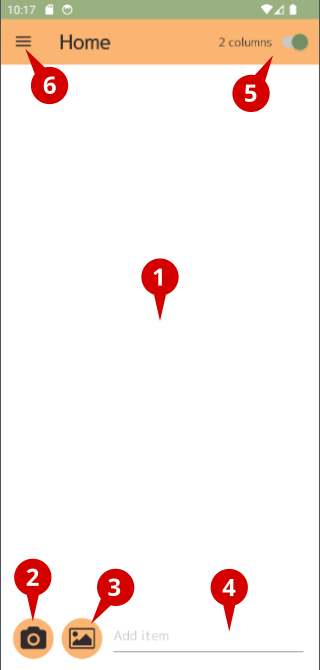
- Here is the checklist.
- Start the camera.
- Select a saved image.
- Enter text and add check items.
- Toggle between single and double row display.
- Open the menu.
Settings Page
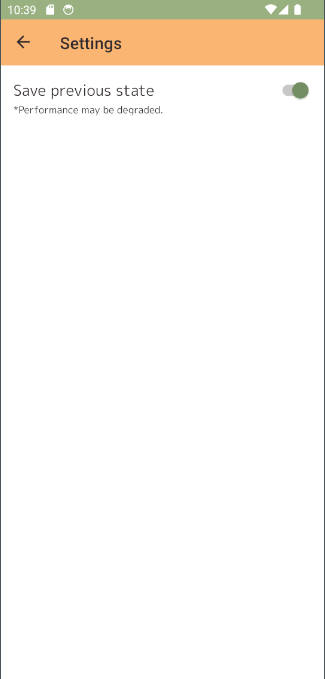
The next time the application is launched, the previously created checklist can remain. Performance will be a little slower.
App Information Page
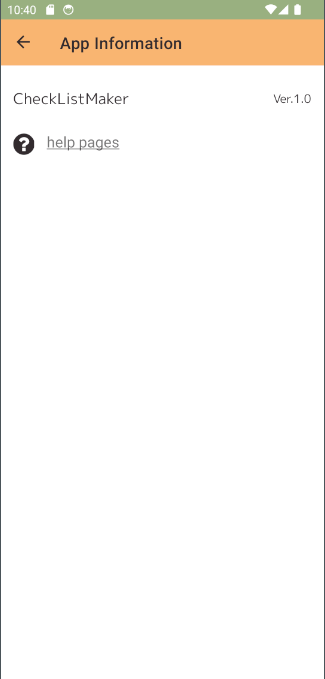
- You can check the version of the application.
- Go to the help page from here.
How to user
Checklist Creation
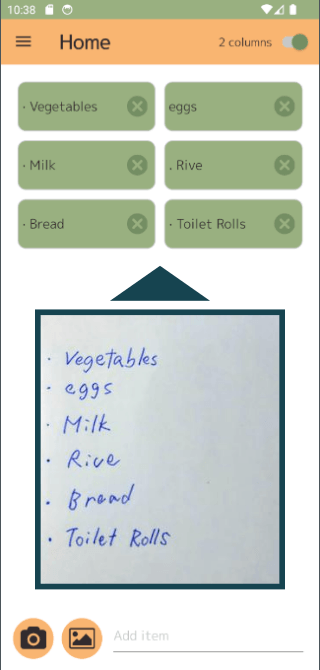
- Selecting an image taken with a camera or saved on a smartphone will automatically create a checklist.
- Checked items cannot be edited; use the x button to delete them and the text entry to add them.
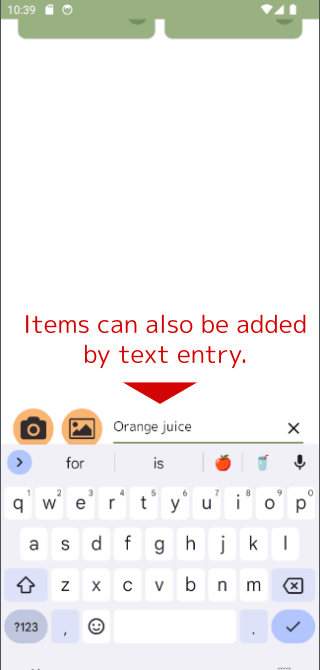
Check items can be added from the text form at the bottom of the screen.
Check Method
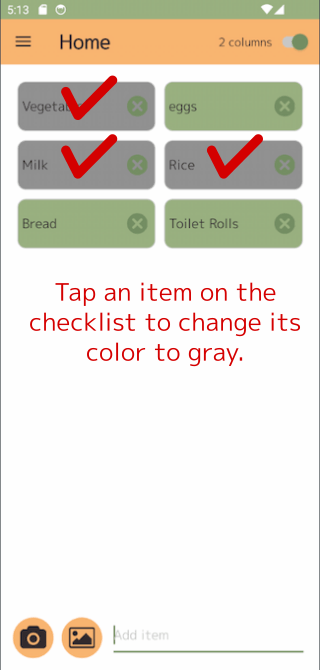
Tap a check item to change its color to gray. Tap again to return to the original color.
Switching list view
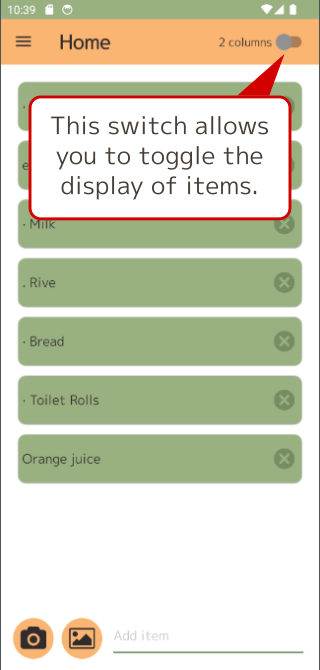
The switch in the upper right corner of the screen toggles the checklist between a one- or two-column display.